









Adding Rec Leads
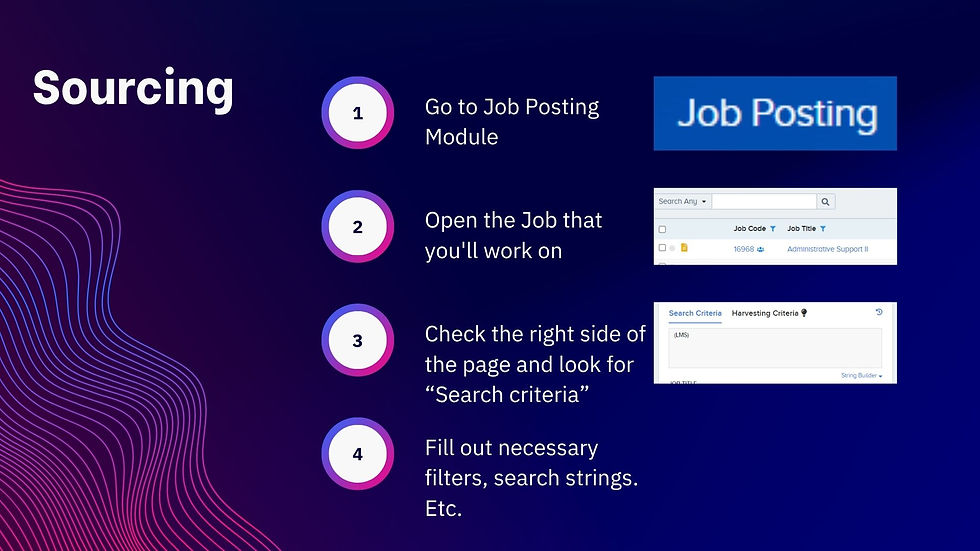
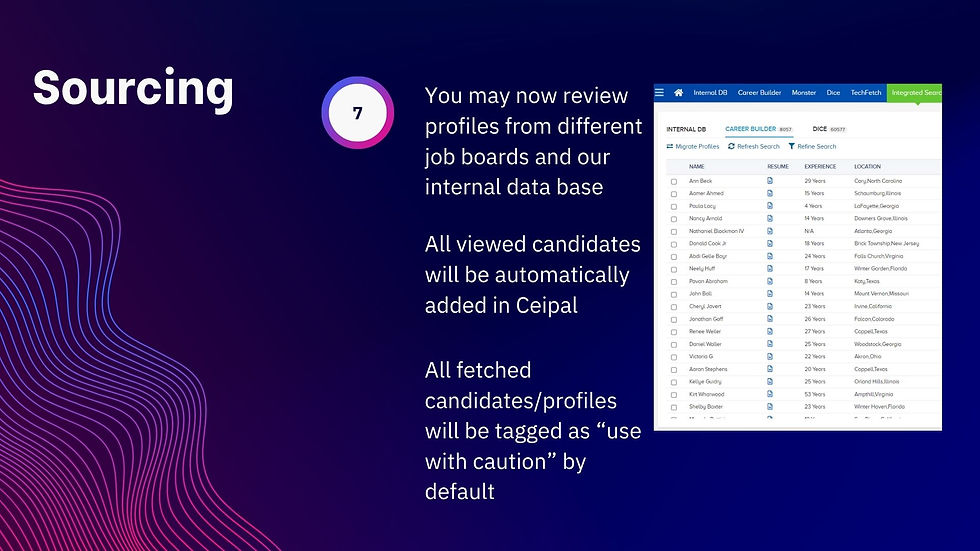
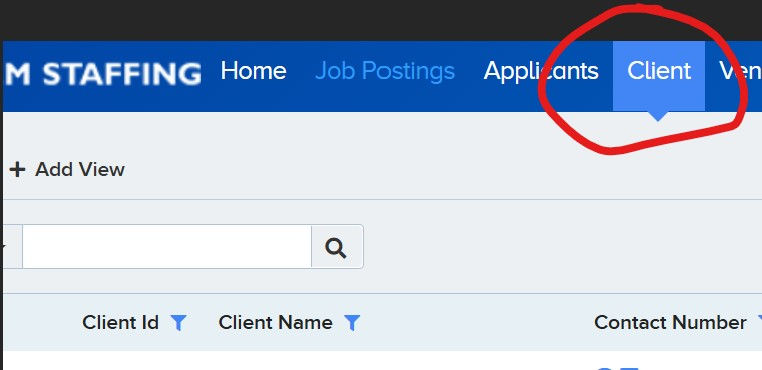
1. Go to the “Client” module in Ceipal
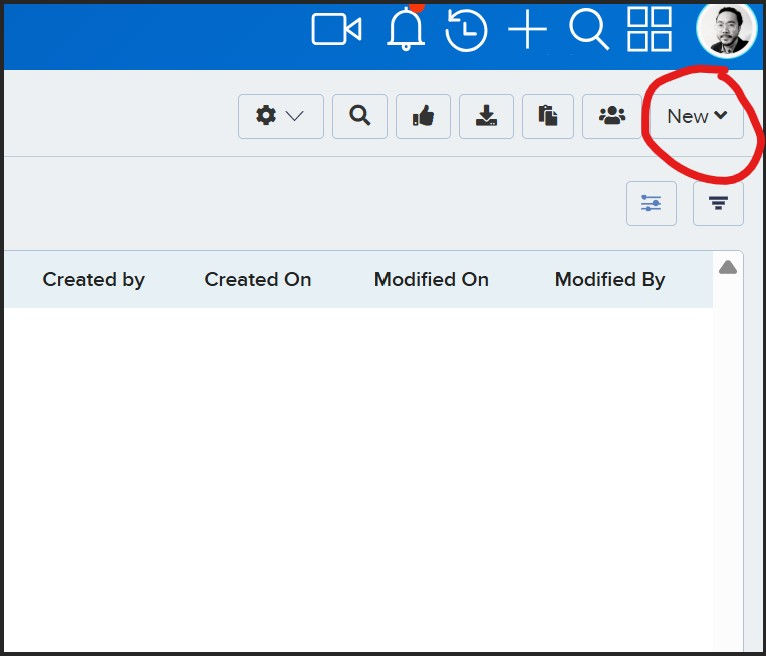
2. Locate the “new” button on the right side of the screen
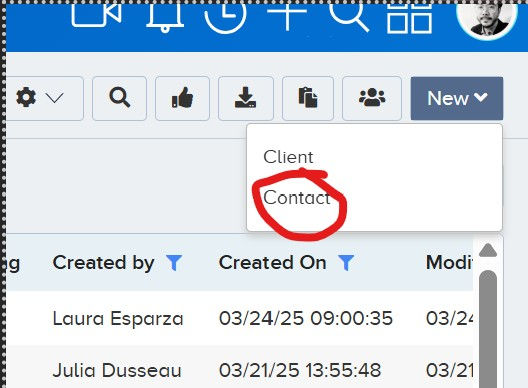
3. Click the down arrow button and click “contact”
4. Find the Client (if Client is not yet added, go to step. 6)
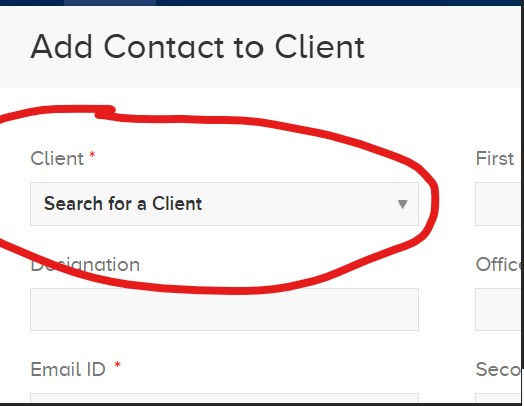

-
Enter the required information
-
First Name
-
Email, phone number, and LinkedIn URL
-
Use “zoominfo” if unable to obtain directly from candidate
-
-
Change status to – Active
-
Primary ownership – will stay as the recruiter who added the record
-
Change ownership to the BDM who owns the client
-
Save
-
5. Add new contact
Notify the BDM by adding a note under in the client contacts (leads) profile
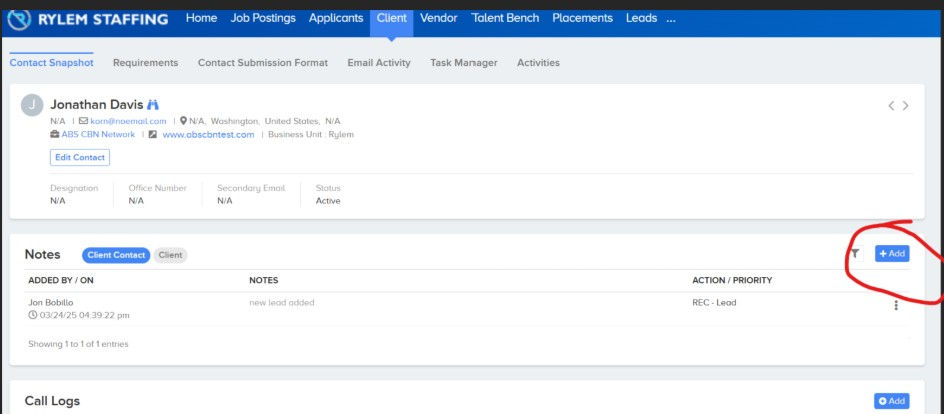
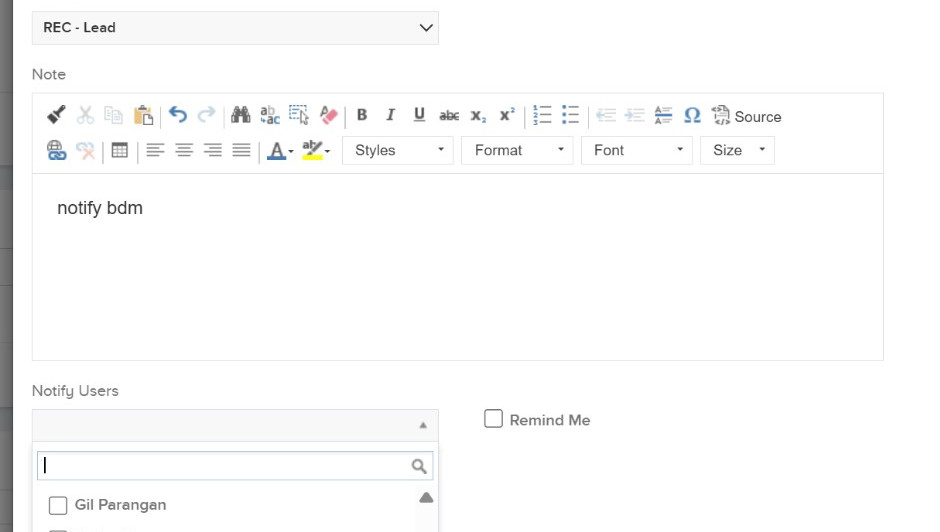
Add the following details.
-
Action – REC – Lead
-
Message – notify BDM
-
Notify Users – select BDM who owns the client if it’s already in the system
6. Add Client (if Client name is not yet in the system)
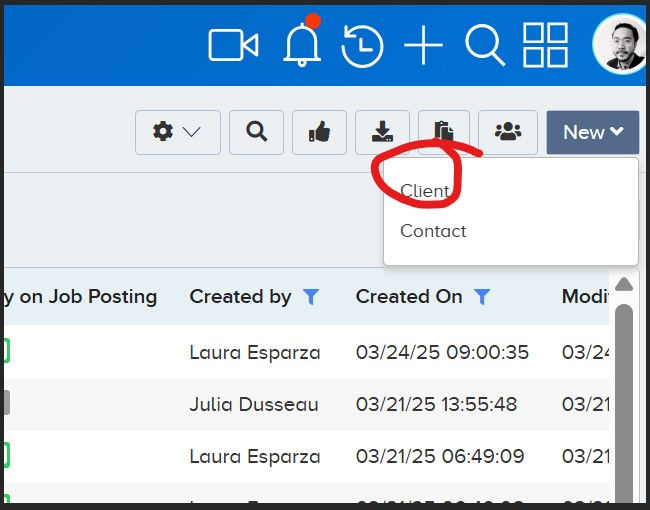
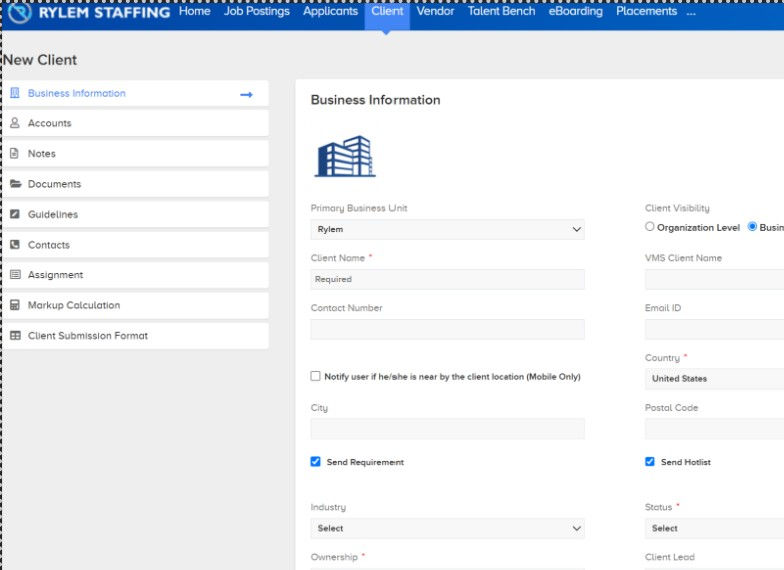
Add the following details.
-
Client Name (no special characters)
-
Website
-
Change status to – Active
-
Ownership – add all BDMs (ownership will be determined by the BDMs)
-
Hit save and Ceipal will direct you to add a contact
Add new contact
-
Enter the required information
-
First Name
-
Email, phone number, and LinkedIn URL
-
Use zoominfo if unable to obtain directly from candidate
-
Change status to – Active
-
Primary ownership and ownership – will stay as the recruiter who added the record
Save
Notify the BDM by adding a note under in the client contacts (leads) profile
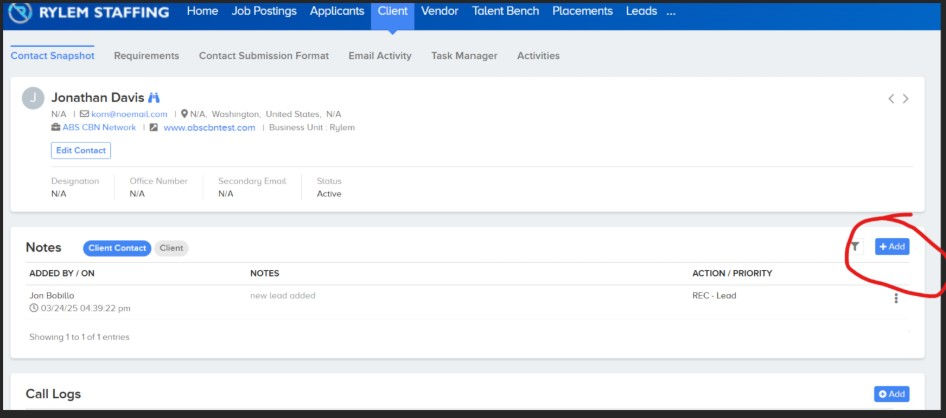
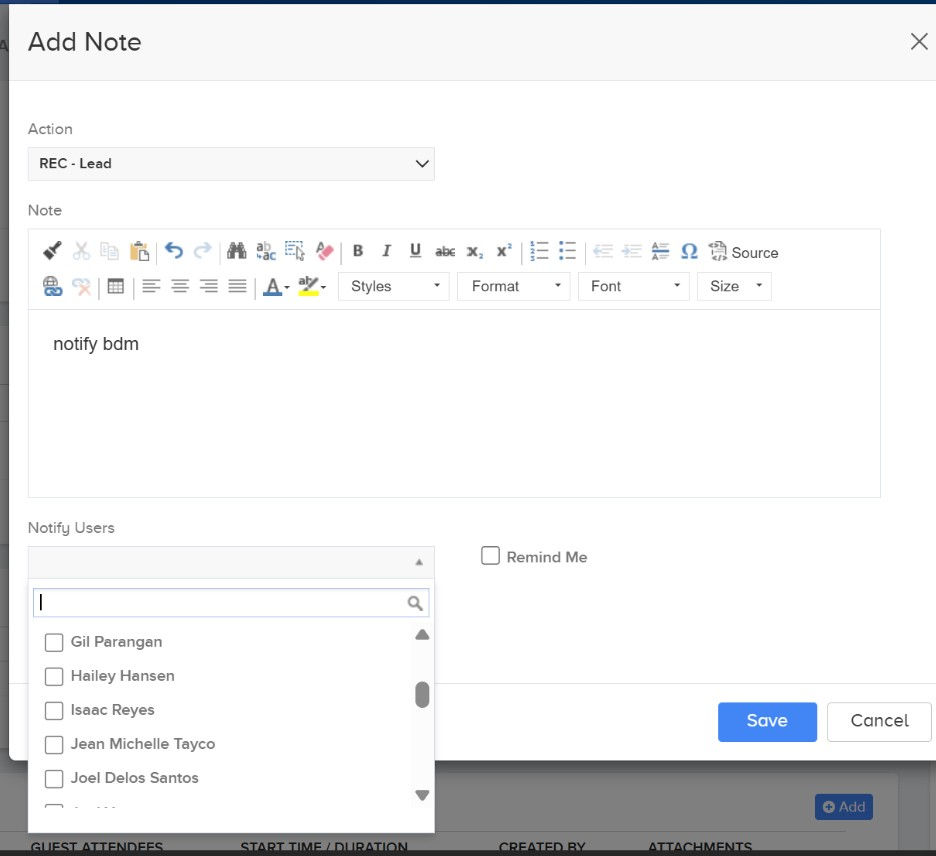
Add the following details.
-
Action – REC – Lead
-
Message – notify BDM
-
Notify Users – select BDM who owns the client if it’s already in the system